Have a Starlink or want to buy?
If you have Starlink or want to buy it, you can have something more. Reading this article will help you better understand your needs and meet them.
Starlink is a fantastic way to get broadband connectivity around the world, where other technologies do not exist or do not meet modern Wi-Fi standards for speed, stability, and security.
A combination of Starlink with Keenetic Wi-Fi offers unique advantages, including connection to multiple Internet providers, a complete mesh network, multiple guest segments, Internet security, Family safety, VPN, and IP telephony.
Already connected? Not satisfactory? Buy Starlink as an alternative.
With Keenetic, you can connect to many providers. So if you already have an Internet connection with your current provider, you can add Starlink and use it as a more powerful connection, keeping your old Satellite, DSL or Mobile connection as backup.
Where can we start?
It depends on the Starlink model. They have Mini, Standard, Standard Actuated, Enterprise and Performance kits.
Mini has a built-in Wi-Fi router. Standard and Standard actuated come with Gen.2 or Gen.3 external Wi-Fi router; Enterprise and Performance come without a Wi-Fi router.
Any connection of the Keenetic Wi-Fi router to Starlink requires a standard RJ45 Ethernet cable. Each Keenetic Wi-Fi router comes with 1 1-meter-long cable. If you need a longer cable, you can easily buy it separately.
-
Mini Kit: Connect the Keenetic router WAN port to an RJ45 port on the Starlink Antenna.
-
Standard and Actuated Kits with Gen 3 and Gen 1 router: Connect the Keenetic router WAN port to an RJ45 LAN port (marked as “AUX” on the Gen 1 router) of the Starlink router.
-
Standard and Actuated Kits with Gen 2 router: You will need to use a separate Ethernet adapter (provided by Starlink). Connect the Starlink Ethernet adapter between the Starlink router and the Starlink Outdoor Unit. Connect the Keenetic router's WAN port to a Starlink RG45 Ethernet adapter port.
-
Enterprise and Performance Kits: Connect the Keenetic router WAN port to an RJ45 port of the Starlink power supply (PoE injector).
After the connection is done, you can start with your Keenetic router.
Set up, upgrade, and install the Keenetic router and modules.
Now it's time to follow the wizard that will guide you through the router's initial configuration, where you'll choose what you want. In the “Internet” section, select To configure Internet access via an Ethernet cable provided directly by your ISP, then select Other, and leave all settings as they are. This will allow you to receive the IPv4 and IPv6 addresses from Starlink.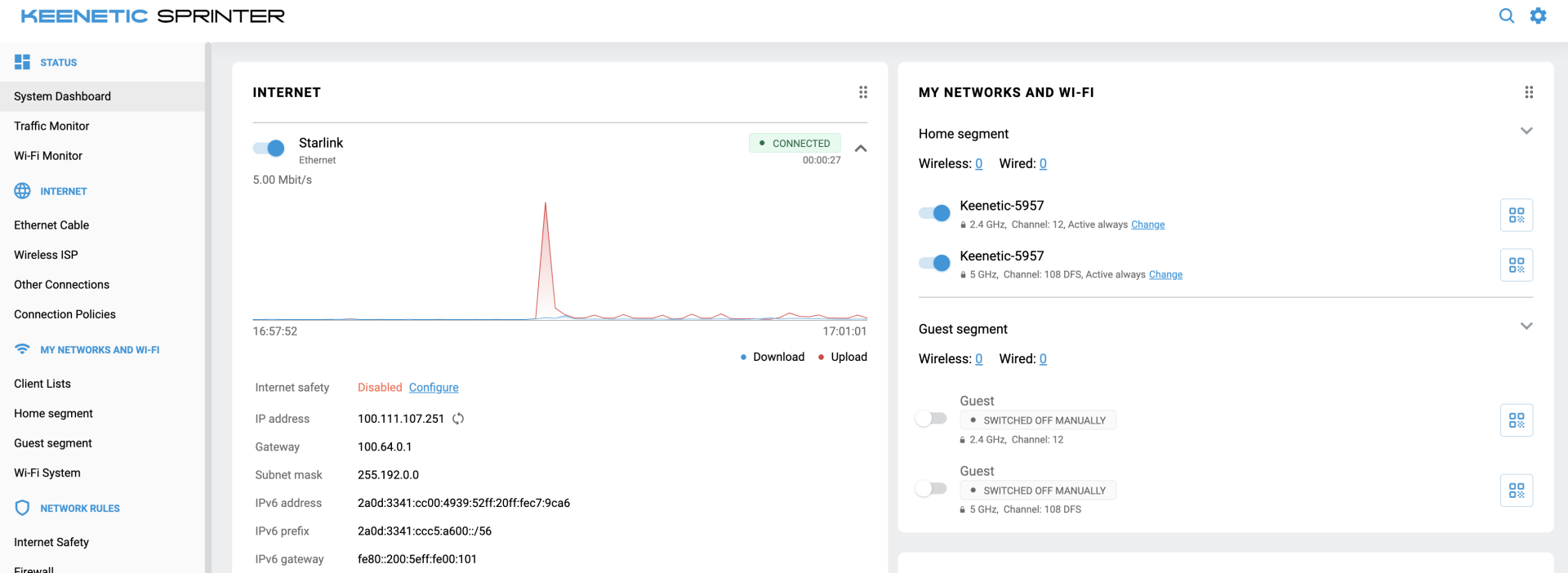 After the router starts correctly, from the System Settings menù you can click
Show components and select the modules you need. Below are some examples:
-
Languages: you can install your preferred language from 13 options.
-
ZeroTier client: Keenetic had already integrated the ZeroTier client, a powerful Decentralised VPN solution that also works on the Starlink network.
-
Traffic classification engine: a powerful DPI engine able to analyse and sort packets based on category. Say goodbye to bandwidth saturation and packet loss.
Create a Mesh Network
If you want better connectivity and have some wireless zones with limited coverage, you can add Keenetic Wi-Fi extenders. In our solution, all routers can be used as extenders managed by the main router (controller), so the only thing that matters is what you need. You can choose range extenders, PoE-powered APs or any other routers. Seamless Wi-Fi protocol guarantees the best possible quality of service.
Create more guest segments.
To ensure network security, isolate traffic between the main, guest, children, and IoT segments by creating up to 7 segments. For example, in a restaurant or bar, you can configure the main segment for staff and a separate one for guests, allowing only Internet access. If you don’t want your IoT devices to have access to your credit card, create an IoT segment and assign all IoT devices to it.
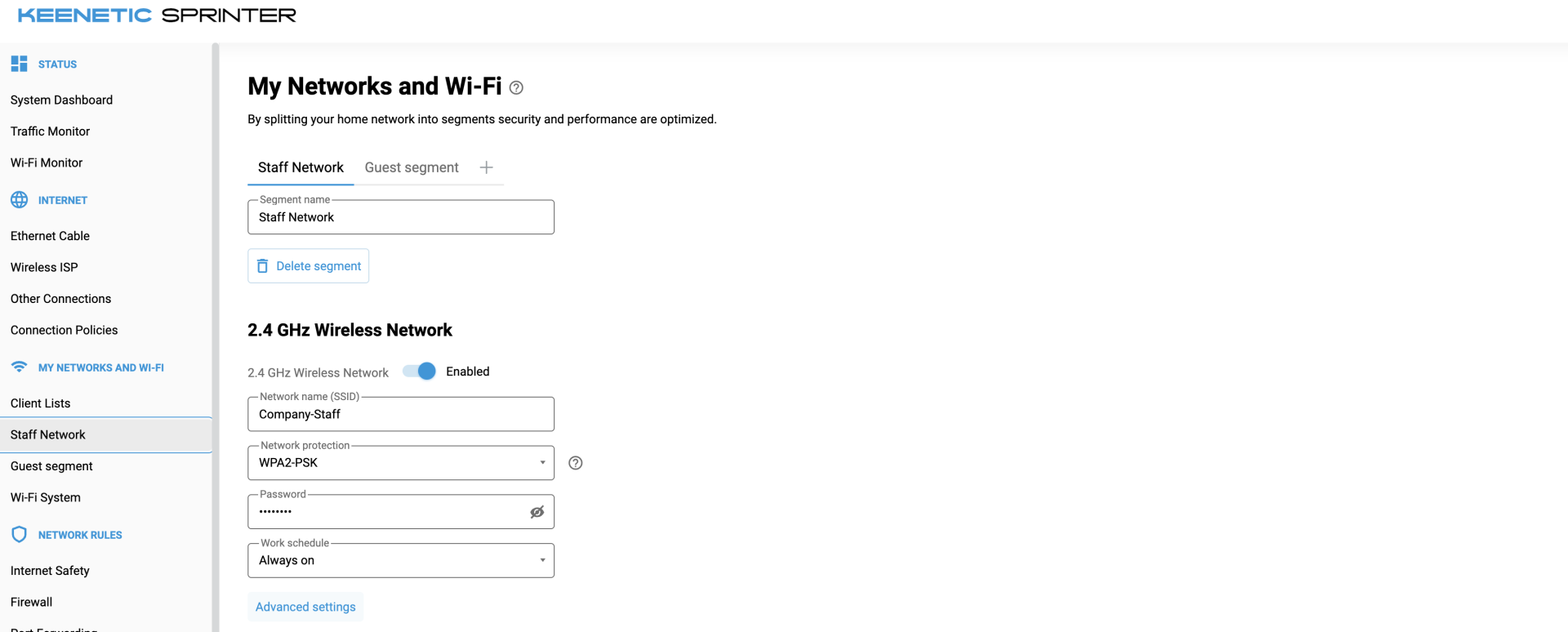 All this while managing traffic between segments with a powerful integrated firewall.
Internet security
From a security perspective, Keenetic routers offer a comprehensive set of built-in features. Starting with the firewall itself, Password Strength verification, Conntrack Overflow Protection, and other security elements that block traffic from the Internet and protect LAN Networks, we are always working to protect the router and all devices on the private network.
Family safety
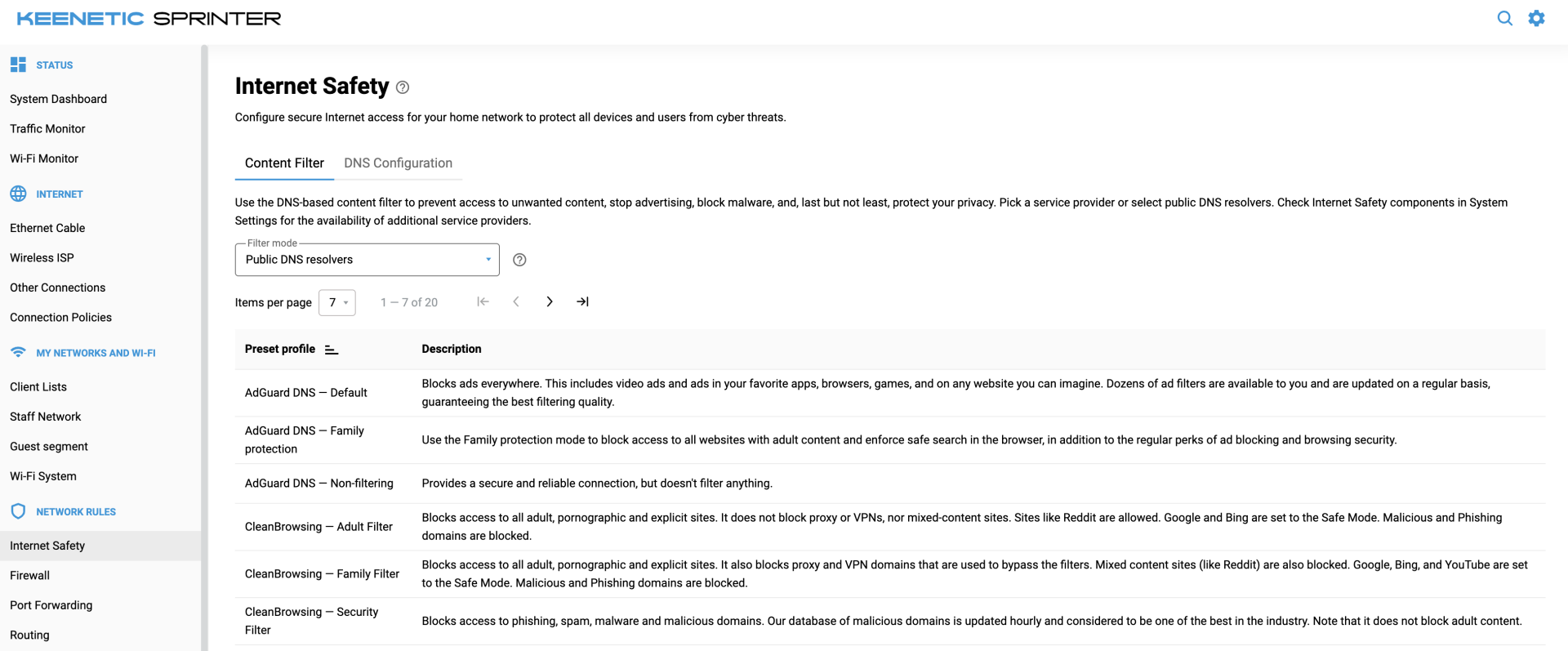
To best protect your family, staff, or clients, you can use a DNS filter with different public DNS services. This way, destinations containing sensitive content, malware or phishing are blocked, significantly increasing protection. Everything is already integrated; simply go to the Internet Safety section, select Public DNS Resolvers and select the one you want for each segment.
IP Telephony
Buy the Keenetic IP Telephony extension module “Linear”, connect it to the Keenetic router USB port and set up Telephony. If not already installed, you need to install the Keenetic Phone Station module, which allows you to manage up to 10 SIP accounts on 2 FXS ports. Once installed, go to Telephony -> Phone Lines, then click + New Line and configure the SIP account with the information received from your SIP provider. From now on, you’re ready to receive and make calls with your new SIP account.
Revert the Starlink router to Power Injector.
Bypass mode allows you to turn off the Starlink router and connect the Keenetic router directly to Starlink. You can enable bypass mode in the Starlink app under “Settings”. This allows you to improve your experience by excluding all routing and NAT settings from the Starlink router.
-
Mini Kit: Starlink recommends using the official Starlink Mini Ethernet cable to maintain the Mini’s weatherproofing.
-
Standard Actuated Starlink with Gen 2 Router: You will need an Ethernet adapter to connect a third-party router.
-
Standard Starlink with Gen 3 Router: Enable bypass mode using the Starlink app. Once bypass mode is enabled, you can plug your third-party router directly into one of the router's Ethernet ports. To exit bypass mode, you will need to perform a factory reset.
-
Starlink Enterprise, Performance (Gen 1) and Performance (Gen 2) with Gen 2 Router: simply plug in the third-party router to the power supply.
-
Standard Circular Starlink with Gen 1 Router: directly replace the Gen 1 router with your third-party router.
Conclusion
Combining Starlink Internet with Keenetic solutions allows you to Connect Better.